Installation
A supported Debian-, Arch-, or Fedora/RHEL-family distribution with Xorg is required.
Quick Install (Recommended)
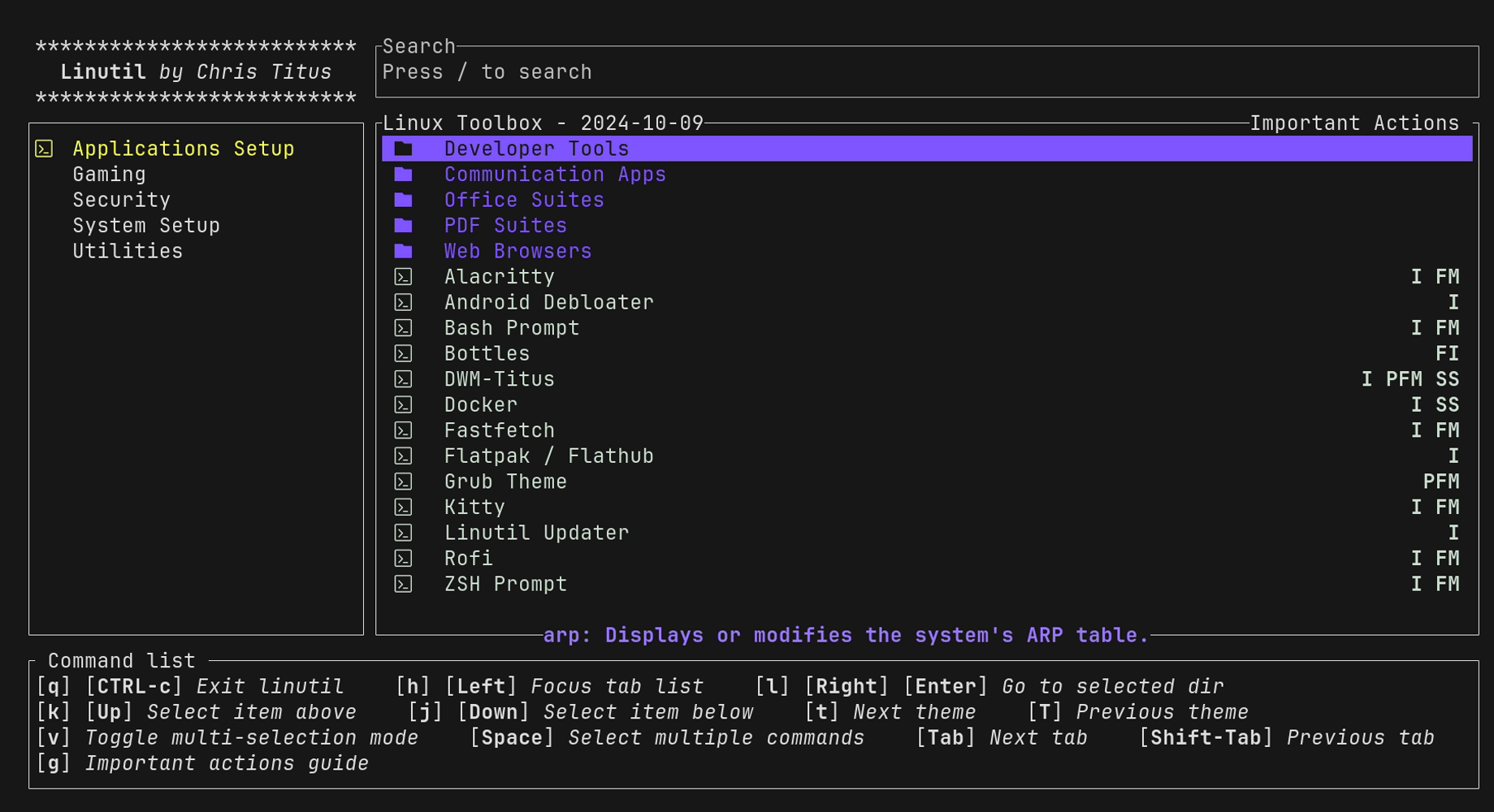
The easiest way is via Linutil:
curl -fsSL https://christitus.com/linux | sh
In the TUI, press v to multi-select, then select dwm, bash prompt,
and alacritty. Press Enter to install.
Current dwm-titus installs provide the checksum-verified Herdr helper. Run it after the Linutil path:
install-herdr
Manual Install
1. Dependencies
The supported dependency path is the installer because it resolves package names for Debian-, Arch-, and Fedora/RHEL-family systems from the shared map:
./install.sh --dry-run --non-interactive --profile core
./install.sh --profile full
Use core for the required build/X11/session packages and one terminal
emulator, recommended for the desktop layer plus Herdr on top of Alacritty,
or full for optional extras such as file-manager integration, portals,
keyring login integration, wallpapers, and display-manager setup. On x86_64
Fedora, full can also install Steam, Gamescope, GameMode, and MangoHud after
repository approval.
The installer separately asks before enabling the christitustech/copr-fedora
COPR for patched Gamescope and RPM Fusion nonfree for Steam. Declining skips the
gaming subset without affecting other full-profile extras.
2. Clone and Build
git clone https://github.com/ChrisTitusTech/dwm-titus.git
cd dwm-titus
cp config.def.h config.h
./scripts/dev-sync-install.sh
For later source-checkout updates, run the same command so the binary,
installed helpers, managed Quickshell configuration, and data copy stay at one
revision. Run ./scripts/dev-sync-install.sh --check after any requested
session restart to verify the active runtime.
Automated Installer
./install.sh
The script detects the distribution family and handles dependency
installation, font copying, display-manager integration, and config placement.
Existing user configuration and .xinitrc files are preserved. Upgrades remove
the known legacy dwm-graphical-session.service and
wm-graphical-session.service early-start configuration so XDG applications
start only after the X11 display environment is available; customized user
units are disabled from early startup but otherwise preserved.
System files are installed with sudo, while configuration and data under the
user’s XDG directories are installed as that user.
If a v0.6.0 Fedora image left the default XDG parents owned by root, first verify that none of them is a symbolic link, then repair only those parents and rerun the installer:
xdg_parents=()
for path in "$HOME/.local" "$HOME/.local/share" "$HOME/.config"; do
    test ! -L "$path" || {
        printf 'Refusing symbolic link: %s\n' "$path" >&2
        exit 1
    }
    test -e "$path" || continue
    test -d "$path" || { printf 'Refusing non-directory: %s\n' "$path" >&2; exit 1; }
    xdg_parents+=("$path")
done
((${#xdg_parents[@]} == 0)) || sudo chown "$(id -u):$(id -g)" -- "${xdg_parents[@]}"
./install.sh
This repair is intentionally non-recursive so it does not change unrelated user files.
Recommended and full profiles install Herdr as the default interactive
workspace inside Alacritty. The repository downloads the official
https://herdr.dev/install.sh into an isolated staging directory and verifies
repository-pinned SHA-256 checksums for both that installer and its resulting
Herdr binary before copying it into ~/.local/bin. A checksum mismatch or
network failure leaves Alacritty usable and reports that Herdr was skipped.
When the codex or claude command is already available, the helper also runs
Herdr’s matching integration install command so native Codex and Claude Code
sessions can be restored. Integration failures are reported separately from
binary installation failures.
When matching vendor XDG entries exist for Picom, the polkit agent, or Light Locker, the installer copies each entry to the user autostart directory and adds only the dwm session exclusion. Original commands and vendor session guards remain intact, no entry is created when the vendor entry is absent, and existing user entries are preserved.
Installer package profiles are selected with DWM_INSTALL_PROFILE:
core: required build packages, X11/session runtime, and one supported terminal emulator. Herdr is skipped unless--install-herdris provided.recommended:coreplus the recommended desktop layer such as Quickshell, Herdr on top of Alacritty, Picom, Feh, Dex, fonts, theming, screenshot, audio, Bluetooth control and tray tools, and brightness tools. It also installs portable GTK theme packages where available and installs Nordic system-wide for the default Nord theme.full:recommendedplus optional extras such as Thunar with SMB-share browsing, network tray utilities, portals, keyring login integration, wallpapers, and display-manager setup. x86_64 Fedora full installs also include Steam, Gamescope, and 64-bit and 32-bit GameMode and MangoHud support after separate repository approval. The installer enables thechristitustech/copr-fedoraCOPR for Gamescope and RPM Fusion nonfree for Steam, then adds the invoking user to thegamemodegroup; log out and back in before using its privileged tuning helpers.
The default is full to preserve the historical automated installer behavior.
On non-Fedora RHEL-family systems, maim may not be present in the enabled
repositories. The installer skips that add-on instead of failing the desktop
install and reports that the screenshot hotkeys are unavailable. Enterprise
Linux 9 users can enable EPEL and rerun the installer to add maim where the
package is available.
For a minimal install:
DWM_INSTALL_PROFILE=core ./install.sh
The same profile can be selected with a flag:
./install.sh --profile core
Interactive runs print the resolved package plan before prompting. For CI, packaging checks, or scripted validation, use the non-interactive flags:
./install.sh --dry-run --non-interactive --profile core
./install.sh --non-interactive --yes --profile recommended
./install.sh --non-interactive --yes --profile full --enable-fedora-gaming-repos
Without --enable-fedora-gaming-repos, unattended Fedora full installs skip
Steam, Gamescope, GameMode, and MangoHud rather than changing repository trust.
Use --skip-herdr or DWM_INSTALL_HERDR=false to skip Herdr installation.
These installation controls do not disable a Herdr executable that is already
available; set DWM_HERDR=0 in the session environment to bypass an existing
Herdr installation at runtime. Use --install-herdr or
DWM_INSTALL_HERDR=true to include Herdr with the core profile. Automatic
recommended/full-profile installation is limited to x86_64 and aarch64 because
those are the Linux architectures published by Herdr. Herdr can also be
installed or repaired separately:
install-herdr
install-herdr --force
Upgrades preserve an existing hotkeys.toml. If an earlier installer seeded
its terminal variable to alacritty, kitty, or another direct terminal,
the installer prints the exact change needed to use dwm-terminal and Herdr
from Super+X without overwriting that user-owned file.
Starting dwm
Display manager (SDDM, GDM, LightDM): log out and select dwm from the session list.
When the interactive installer runs inside an active X11 session, it offers
the dwm-display-setup wizard after installation. The wizard previews the
chosen resolution and multi-monitor layout, then installs a backed-up Xorg
fragment. Installations run from a TTY or in non-interactive mode defer this
step; after the first X11 login, run:
dwm-display-setup
The installed Settings display provider is machine-oriented. Its actions are:
dwm-settings-display discover
dwm-settings-display watch
dwm-settings-display save NAME SPEC...
dwm-settings-display preview TOKEN SECONDS SPEC...
dwm-settings-display preview-profile TOKEN SECONDS NAME
dwm-settings-display keep TOKEN [NAME]
dwm-settings-display revert TOKEN
dwm-settings-display preview-status [TOKEN]
dwm-settings-display install-profile NAME
dwm-settings-display rollback-system
Discovery and live previews require xrandr, and the hotplug watch requires
udevadm. Persistent install and rollback additionally require pkexec plus
the root-owned helper installed at ${PREFIX}/libexec/dwm-titus/. Profiles are
stored under
${XDG_CONFIG_HOME:-$HOME/.config}/dwm-titus/display-profiles/. No move is
needed for profiles created by dwm-display-profile, which uses the same
directory. If DWM_DISPLAY_PROFILE_DIR previously pointed elsewhere, either
keep that environment override or move those .conf files into the default
directory before using Settings.
The input provider exposes the corresponding session actions:
dwm-settings-input discover
dwm-settings-input watch
dwm-settings-input watch-apply
dwm-settings-input apply-saved
dwm-settings-input preview TOKEN SECONDS DEVICE SETTING VALUE
dwm-settings-input keep TOKEN
dwm-settings-input revert TOKEN
dwm-settings-input preview-status [TOKEN]
dwm-settings-input reset DEVICE SETTING
All input actions require xinput; keyboard layout and modifier operations
also require setxkbmap; stable hardware identity and hotplug watching use
udevadm, and the session watcher uses flock from util-linux to prevent
duplicate replay workers. Kept values default to
${XDG_CONFIG_HOME:-$HOME/.config}/dwm-titus/input-settings.conf. Set
DWM_INPUT_SETTINGS_FILE to use a different file. The normal session startup
invokes apply-saved idempotently and runs watch-apply to debounce input
hotplug events before replaying saved values for returning devices.
startx:
startx
The provided .xinitrc disables screen blanking, starts the configured Quickshell panel, and runs dwm.
Minimal Session Profile
The minimal supported profile is useful for lean systems, recovery sessions, and portability testing. It keeps only:
- an X11 server and either a display-manager session or
startx - D-Bus session support
dwm- one supported terminal available through
dwm-terminal - required X11 helpers used by core startup and display commands, such as
xrandr,xset, andxsetroot
Quickshell, Picom, Feh, Dex, a polkit agent, screenshot tools, wallpapers, tray
utilities, and audio or brightness helpers are optional in this profile.
Missing optional components should appear as degraded features in
dwm-diagnostics, not as session-fatal failures.
For startx, a minimal .xinitrc can be:
#!/bin/sh
xset s off
xset -dpms
xsetroot -cursor_name left_ptr
exec dbus-run-session dwm
If the login path already creates a user D-Bus session, use exec dwm
instead of wrapping it with dbus-run-session.
After installation, verify the profile with:
dwm-diagnostics
dwm-terminal --print-command
dwm-diagnostics must report zero required failures before treating the
minimal profile as ready. Optional degraded features can remain unresolved.
When Herdr is installed, a plain dwm-terminal opens it in Alacritty. Commands
such as dwm-terminal -e sh -c 'command' bypass Herdr and run directly in the
outer emulator.
Getting Started
After installing, the first thing to know: Super = the Windows key.
Press Super + / at any time to open the interactive keybind viewer.
Essential Actions
| Action | Keys |
|---|---|
| Open terminal workspace (Herdr when available) | Super + X |
| App launcher (Quickshell) | Super + R |
| Close window | Super + Q |
| Power menu | Super + Ctrl + Q |
| Control Center | Super + F1 |
| Keybind viewer | Super + / |
Switching Tags (Workspaces)
Tags 1-9 act as workspaces. Use Super + a number from 1 through 9 to switch.
Super + 0 shows windows from all nine tags at once; 0 is not a tenth tag.
| Action | Keys |
|---|---|
| Switch to tag | Super + 1–9 |
| Move window to tag | Super + Shift + 1–9 |
| Show all tags | Super + 0 |
Layouts
Three layouts are available — switch between them instantly.
| Layout | Keys |
|---|---|
| Tiling (master + stack) | Super + T |
| Floating | Super + Shift + M |
| Fullscreen (monocle) | Super + M |
See Keybindings for the full reference.
Keybindings
Press Super + / inside dwm to open a live, searchable Quickshell keybind viewer.
MODKEY = Super (Windows key) in the shipped config.h.
Bindings are defined in config/hotkeys.toml and reload instantly on save — no recompile needed.
Launchers
| Keys | Action |
|---|---|
Super + R | App launcher (Quickshell) |
Super + X | Terminal workspace (Herdr when available) |
Super + E | File manager |
Super + B | Browser |
Super + / | Keybind viewer |
Super + F1 | Control Center |
Super + Shift + R | Restart Quickshell |
Screenshots
| Keys | Action |
|---|---|
Super + P | Screenshot active monitor (cursor omitted) |
Super + Shift + P | Screenshot selection → file |
Super + Ctrl + P | Screenshot selection → clipboard |
All dwm-screenshot capture modes omit the mouse cursor.
maim region captures start selection immediately without a monitor chooser.
The active-monitor shortcut uses the monitor under the pointer. Clipboard
captures are PNG selections owned by xclip, while captures saved to disk use
JPEG. The lightweight capture flow intentionally has no annotation toolbar.
Web Apps
| Keys | Action |
|---|---|
Super + A | ChatGPT |
Super + Shift + A | Gemini |
Super + Shift + X | X/Twitter — new post |
Window Management
| Keys | Action |
|---|---|
Super + J | Focus next window |
Super + K | Focus previous window |
Super + Shift + J | Move window down in stack |
Super + Shift + K | Move window up in stack |
Super + Return | Promote window to master |
Super + Q | Close window |
Super + I | Add window to master area |
Super + D | Remove window from master area |
Super + H | Shrink master area |
Super + L | Expand master area |
Super + Shift + H | Increase window cfact size |
Super + Shift + L | Decrease window cfact size |
Super + Shift + O | Reset window cfact |
Layouts
| Keys | Action |
|---|---|
Super + T | Tiling layout |
Super + M | Fullscreen (monocle) |
Super + Space | Toggle floating for window |
Super + Shift + M | Toggle floating for window |
Super + Shift + Y | Fake fullscreen (bar stays) |
Super + Shift + B | Toggle bar visibility |
Tags (Workspaces)
| Keys | Action |
|---|---|
Super + 1–9 | Switch to tag |
Super + Ctrl + 1–9 | Also show tag alongside current |
Super + Shift + 1–9 | Move window to tag |
Super + Ctrl + Shift + 1–9 | Also show window on that tag |
Super + 0 | Show windows from all nine tags; 0 is not a tag |
Super + Tab | Previous tag |
Multi-Monitor
| Keys | Action |
|---|---|
Super + , | Focus left monitor |
Super + . | Focus right monitor |
Super + Shift + , | Send window to left monitor |
Super + Shift + . | Send window to right monitor |
Media Keys
| Keys | Action |
|---|---|
XF86AudioRaiseVolume | Volume up |
XF86AudioLowerVolume | Volume down |
XF86AudioMute | Mute toggle |
XF86MonBrightnessUp | Brightness up |
XF86MonBrightnessDown | Brightness down |
Session & Power
| Keys | Action |
|---|---|
Super + Ctrl + Q | Power menu |
Super + Shift + Q | Quit dwm and cleanly end the graphical session |
Super + Ctrl + Shift + R | Reboot |
Super + Ctrl + Shift + S | Suspend |
Mouse
| Action | Function |
|---|---|
Super + Left drag | Move window |
Super + Middle click | Toggle floating |
Super + Right drag | Resize window |
Customizing Keybinds
Edit config/hotkeys.toml — changes take effect on save, no recompile required.
[vars]
terminal = "dwm-terminal"

keys = [
  { mod="SUPER SHIFT", key="f", desc="Firefox", func="spawn", exec=["firefox"] },
]
See the comments in hotkeys.toml for a full list of func values and modifier syntax.
The browser binding uses dwm-default-apps open. Configure it with
dwm-default-apps browsers and dwm-default-apps set-browser <desktop-id>.
The default dwm-terminal wrapper opens Herdr inside Alacritty when Herdr is
installed. Set DWM_HERDR=0 to keep the same binding as a plain terminal.
Configuration
dwm-titus keeps user configuration under
${XDG_CONFIG_HOME:-$HOME/.config}/dwm-titus/. Hotkeys and themes
live-reload on save — no recompile needed for most changes.
| File | Purpose |
|---|---|
config/hotkeys.toml | All keybindings |
config/themes.toml | Colors, themes, border size |
power.conf | Control Center screen DPMS and auto-lock choices |
For deeper changes (window rules, fonts, refresh rate), edit config.h and
run the complete developer synchronization command:
./scripts/dev-sync-install.sh
It rebuilds dwm, updates all installed commands and managed Quickshell/data
files when needed, verifies parity, and reports whether the dwm session must be
restarted. When a session restart is already required, it activates Quickshell
there so the tray host starts before tray clients. Use
./scripts/dev-sync-install.sh --check for a non-mutating audit.
config.h Essentials
config.h is your personal copy of config.def.h. It is created automatically by make if it doesn’t exist.
$EDITOR config.h
./scripts/dev-sync-install.sh
Key Options
| Setting | Description |
|---|---|
refresh_rate | Match your monitor (default 60; set 120 for high-refresh) |
fonts[] | Font family and size used in the bar |
colors[] | Managed by themes.toml — rarely edit directly |
autostart[] | Programs launched on dwm start |
rules[] | Per-app window rules (floating, tag assignment, terminal flag) |
keys[] | Fallback static keybinds (prefer hotkeys.toml) |
MODKEY | Mod4Mask = Super, Mod1Mask = Alt |
Window Rules
Rules in config.h let you assign windows to specific tags or force float:
/* class      instance  title   tags mask  isfloating  isterminal  noswallow  monitor */
{ "Gimp",     NULL,     NULL,   0,         1,          0,           0,        -1 },
{ "Firefox",  NULL,     NULL,   1 << 1,    0,          0,          -1,        -1 },
hotkeys.toml — Live Keybinds
Add or change bindings without recompiling. Save the file and they apply instantly.
[vars]
terminal = "dwm-terminal"
webapp   = "webapp-launch"

keys = [
  { mod="SUPER",       key="x",  desc="Terminal",    func="spawn", exec=["$terminal"] },
  { mod="SUPER SHIFT", key="f",  desc="Firefox",     func="spawn", exec=["firefox"] },
]
dwm-terminal prefers Alacritty and opens Herdr inside it for a plain
interactive launch. If Herdr is unavailable, it opens the selected emulator
directly. Explicit arguments such as dwm-terminal -e command always bypass
Herdr so application launchers and maintenance actions keep working.
Thunar’s seeded Open Terminal Here action launches Alacritty directly in
the selected directory. It intentionally bypasses Herdr while leaving the
normal Super + X terminal workspace unchanged. Existing Thunar custom
actions are preserved during installation and upgrades.
Set DWM_TERMINAL to choose another outer emulator, set DWM_HERDR=0 to
disable the Herdr layer, or set DWM_HERDR_COMMAND to another Herdr binary
path.
Default applications use freedesktop settings. Run dwm-default-apps browsers
to list browser desktop files, dwm-default-apps set-browser firefox.desktop
to set the default browser, or dwm-default-apps set-mime <mime> <desktop-id>
for other file types.
Display profiles are optional files under
${XDG_CONFIG_HOME:-$HOME/.config}/dwm-titus/display-profiles. Use
dwm-display-profile template to print the format, dwm-display-profile list
to show profiles, and dwm-display-profile apply <name> to run the profile
through xrandr.
For persistent Xorg configuration, run dwm-display-setup. The interactive
wizard detects connected outputs and their exact advertised timings, then asks
for resolution, refresh rate, rotation, absolute position, and the primary
display. It checks whether the active Xorg driver exposes compatible TearFree
support or the NVIDIA Full Composition Pipeline and enables only the compatible
default. The proposed layout is applied as a live preview and automatically
restored unless it is confirmed. Advanced calls may pass
--force-full-composition-pipeline off to disable the NVIDIA default; forcing
it on with an incompatible kernel or Xorg driver is rejected.
Accepted layouts are installed as the isolated managed fragment
/etc/X11/xorg.conf.d/90-dwm-titus-display.conf; existing Xorg files are not
replaced. Each change creates a versioned backup. Use
dwm-display-setup rollback to restore the newest backup, or
dwm-display-setup status to inspect the managed file and current layout.
Advanced users can pass an existing display-profile file to
dwm-display-setup generate, preview, or install.
For noninteractive session changes, dwm-display-setup capture prints the
current complete RandR profile, dwm-display-setup validate <profile> checks a
profile with xrandr --dryrun, and dwm-display-setup apply <profile> changes
the current X11 layout after validation.
The Settings Displays page uses the same profile grammar and validation through
dwm-settings-display. Named profiles remain user-owned under the XDG path.
Installing one persistently requires explicit confirmation and authorization;
only the root-owned helper under ${PREFIX}/libexec/dwm-titus/ may update the
managed Xorg fragment. Legacy profiles that omit complete position or rotation
state remain usable with dwm-display-profile, but Settings will not preview or
install them until they are resaved as a complete layout.
Per-device input values kept in Settings are stored in
${XDG_CONFIG_HOME:-$HOME/.config}/dwm-titus/input-settings.conf. The
event-driven input provider uses a hardware serial or path when available,
re-resolves that identity before every change, and skips a disconnected device
rather than applying its settings to another XInput ID. Session startup runs
dwm-settings-input apply-saved and starts an event-driven, debounced hotplug
replay so returning devices regain saved values. Repeating the apply is safe.
The replay watcher is scoped to the owning dwm process and exits at logout,
including when dwm was launched through startx.
Power settings are managed from Control Center -> Power. The generated
power.conf is authoritative once created and persists screen DPMS state,
display-off timing, and automatic idle and suspend locking. Startup reapplies
this file before background session services are launched. Manual locking
remains available when automatic locking is disabled. The screen locker runs
only while automatic locking is enabled or for the duration of an explicit
manual lock, so DPMS display-off events remain independent from locking.
External loginctl lock-session requests are forwarded to dwm-lock by an
event-driven session listener. Until power.conf exists, dwm-titus leaves any
user or distribution-managed locker untouched.
Modifier Syntax
Use space-separated modifiers: "SUPER", "SUPER SHIFT", "SUPER CTRL", "SUPER CTRL SHIFT".
Available Functions
func | Parameters | Description |
|---|---|---|
spawn | exec=[...] or cmd="..." | Run a program |
killclient | — | Close focused window |
zoom | — | Promote/demote master |
focusstack | i=1 or i=-1 | Focus next/prev window |
movestack | i=1 or i=-1 | Reorder in stack |
incnmaster | i=1 or i=-1 | Change master count |
setmfact | f=0.05 or f=-0.05 | Resize master area |
setcfact | f=0.25 / f=-0.25 / f=0.00 | Resize window slot |
setlayout | layout_idx=0/1/2 | 0=tile, 1=float, 2=monocle |
togglefloating | — | Float/tile window |
fullscreen | — | True fullscreen |
togglefakefullscreen | — | Fullscreen with bar |
togglebar | — | Show/hide bar |
focusmon | i=1 or i=-1 | Focus monitor |
tagmon | i=1 or i=-1 | Send window to monitor |
view | ui=-1 = all tags | Switch tag |
quit | — | Exit dwm |
Tag Bindings
Tag bindings auto-generate all four variants (switch, toggle-view, move, toggle-tag):
tag_keys = [
  { key="1", tag=0 },
  { key="2", tag=1 },
]
Notes on XDG Autostart
Recommend using Flatpak to install programs on startup:
flatpak install flathub io.github.flattool.Ignition
or you can create your own .desktop file in ~/.config/autostart/
set-refresh.desktop Example:
[Desktop Entry]
Type=Application
Exec=xrandr --output HDMI-0 --primary --mode 1920x1080 --pos 0x0 --rotate normal --rate 120 --output DP-0 --off --output DP-1 --off --output DP-2 --off --output DP-3 --off --output DP-4 --off --output DP-5 --off
Hidden=false
X-GNOME-Autostart-enabled=true
Name=Set Refresh
Theming
Themes are defined in config/themes.toml. Change the active theme and save
to update dwm, Quickshell, terminal, GTK, and Qt styling. No restart needed.
[active]
theme = "nord"   # ← change this line to switch themes
Available Themes
Dark
| Theme | Description |
|---|---|
nord | Arctic, cool blue palette (default) |
dracula | Purple-tinted dark theme |
gruvbox | Warm retro earth tones |
catppuccin | Mocha variant — soft pastels |
tokyonight | Deep blue-grey night theme |
onedark | Atom One Dark inspired |
solarized | Dark variant of Solarized |
rosepine | Muted rose/pine tones |
everforest | Muted green forest palette |
monochrome | Black and white minimal |
Light
| Theme | Description |
|---|---|
catppuccin-latte | Catppuccin light variant |
gruvbox-light | Warm light tones |
solarized-light | Classic Solarized light |
rosepine-dawn | Rose Pine dawn variant |
tokyonight-day | Tokyo Night day variant |
Border Size
[appearance]
borderpx = 1   # 0 = no border, 1 = thin (default), 2-3 = thicker
What Each Theme Controls
Each [theme.name] section sets colors for all components:
| Key | Applies To |
|---|---|
normfgcolor / normbgcolor / normbordercolor | Unfocused bar and windows |
selfgcolor / selbgcolor / selbordercolor | Focused window and active tag |
term_bg / term_fg / term_cursor | Terminal background, text, cursor |
term_color0–term_color15 | Full 16-color terminal palette |
dark_mode | GTK dark preference and Capitaine cursor variant (true / false) |
gtk_theme | Optional installed GTK theme name for GTK apps such as Thunar |
Quickshell derives its opaque surfaces, text, borders, accent, success, warning, and danger colors from the active theme’s existing dwm and terminal color keys.
Creating a Custom Theme
Add a new section to themes.toml:
[theme.mytheme]
normfgcolor     = "#cdd6f4"
normbgcolor     = "#1e1e2e"
normbordercolor = "#313244"
selfgcolor      = "#cdd6f4"
selbgcolor      = "#89b4fa"
selbordercolor  = "#89b4fa"

term_bg         = "#1e1e2e"
term_fg         = "#cdd6f4"
term_cursor     = "#f5e0dc"
# ... term_color0-15 ...
dark_mode       = true
gtk_theme       = "Nordic"
Then set theme = "mytheme" under [active] and save.
Applying Themes via Control Center
Open the Control Center with Super + F1, navigate to Appearance → Select Theme, and pick from the list. The theme switches immediately.
Wallpapers
Place images in ~/Pictures/backgrounds/. Use Super + Shift + W to randomize, or set a specific one:
feh --bg-fill ~/Pictures/backgrounds/mywall.jpg
Control Center
The Control Center is a single-card anchored Quickshell menu for launching applications, panel settings, system health, quick actions, appearance settings, power management, and keybind discovery.
Open: Super + F1, or run dwm-controlcenter from a
terminal.
The popup opens from the panel logo. Applications, Power, Settings, System Health, Keybinds, and System Info are available directly from the main menu. Bar Widgets, Quick Actions, Appearance, and Power Settings replace the menu contents in the same card and provide a Back control. Press Esc or click outside the card to close it from any page.
The Utilities section opens the unified Settings application directly. Phase
1 Settings is a read-only capability overview with section search and
keyboard/mouse navigation. It can also be opened with dwm-settings open.
Network Popover
The panel network indicator opens a Quickshell network popover. It shows active NetworkManager connections, scans visible Wi-Fi networks, and connects to open or WPA personal networks directly. Successful Wi-Fi connections are saved as NetworkManager profiles, so they reconnect normally in later sessions.
Hidden SSIDs and enterprise Wi-Fi are handled through the optional
nm-connection-editor fallback when it is installed.
Bluetooth Popover
The panel Bluetooth indicator opens a compact device manager. It can power the
adapter on or off, scan for devices, pair and trust a new device, connect a
paired device, and disconnect a connected device through bluetoothctl.
Panel Widgets
The Bar Widgets page can show or hide the workspace, volume, Bluetooth, network, and power widgets for the current Quickshell session. The redesigned panel retains the active-window title, status segments, and system tray, and shows all nine dwm tags (workspaces). Hovering icon-only panel controls displays a text tooltip.
The panel, popovers, and control-center cards use fully opaque colors. Their
palette follows the active theme in themes.toml and updates when that file is
changed.
Modules
System Health
System Health opens as a separate full-screen dashboard on the current
monitor. It starts two read-only scans: session checks run immediately, and a
privileged scan completes current-boot journal, kernel, system-service, and
drive checks. If cached or NOPASSWD sudo access is available, the scan runs
without a prompt. Otherwise the running polkit agent requests graphical
authorization. Cancelling the prompt leaves a partial report and marks its
coverage as incomplete.
The dashboard groups checks into:
- Boot and kernel errors from
journalctl, withdmesgas a fallback - Failed user and system services, one service per row
- Memory, pressure, load, swap, filesystem space, and inode use
- Local routing, resolver, and NetworkManager state
- X11, D-Bus, dwm, Quickshell, Picom, audio, and managed configuration
- Required commands, libraries, terminals, and package-database consistency
- Available battery, thermal, and SMART drive-health data
Use Issues Only to hide passing checks. Expand any card to see bounded evidence; the dashboard counts the complete matching log set even when only a sample is displayed. It does not contact an external service to test Internet connectivity and does not scan previous boots.
Boot-journal and kernel-error cards with matching entries include Copy and
Export. Copy sends the card’s readable bounded evidence to the X11
clipboard with xclip. Export saves the same content in the user’s home
directory as a private timestamped file, such as
boot2026-07-09-143000.txt or kernel-errors2026-07-09-143000.txt. Existing
files are never overwritten.
Repair buttons always require confirmation. Each failed service row offers
Start, Stop, Restart, Disable, and Enable. User units are managed with
systemctl --user; system units request administrator authorization through
polkit. An action is accepted only while that exact service remains failed.
The dashboard can also restart known desktop/audio components, launch the
interactive dependency installer, restart NetworkManager or Bluetooth, and
repair the detected time-synchronization provider.
Installing the health helper in a root-owned system path remains recommended:
sudo make install-system
The managed copy under ~/.local/share/dwm-titus is never elevated itself. If
the installed helper is unavailable, cached or NOPASSWD sudo can still run
the validated root-owned system commands. Polkit authorization requires the
root-owned installed helper.
Quick Actions
| Action | Description |
|---|---|
| Restart Picom | Kill and relaunch the compositor |
| Restart Quickshell | Reload the managed Quickshell shell |
| Reload Wallpaper | Randomize from ~/Pictures/backgrounds/ |
| Restart NetworkManager | sudo systemctl restart NetworkManager |
| Run Dependency Check | Opens check-deps.sh in a terminal |
| Install Missing Deps | Runs install.sh in a terminal |
| Wallpaper Folder | Open ~/Pictures/backgrounds/ in the file manager |
| GTK Settings | Launch nwg-look for GTK theming |
Appearance
| Action | Description |
|---|---|
| Select Theme | Pick from all themes defined in themes.toml |
| Randomize Wallpaper | Random image from ~/Pictures/backgrounds/ |
| Open Wallpaper Folder | Open folder in file manager |
| GTK Theme Settings | Launch nwg-look for GTK theming |
Power Settings
The Power Settings card retains the existing persisted screen-DPMS and auto-lock controls. Each feature can be enabled or disabled and assigned a 5-minute, 10-minute, 15-minute, 30-minute, or 1-hour timeout.
Keybind Viewer
Displays all bindings from hotkeys.toml in a searchable Quickshell list. Same
as pressing Super + /.
Running from Terminal
dwm-controlcenter
The script is a compatibility wrapper around the Quickshell IPC target:
quickshell ipc --path "${XDG_DATA_HOME:-$HOME/.local/share}/dwm-titus/config/quickshell/shell.qml" call controlcenter toggle
Open or refresh System Health directly through its IPC target:
quickshell ipc --path "${XDG_CONFIG_HOME:-$HOME/.config}/quickshell/shell.qml" call systemhealth open
quickshell ipc --path "${XDG_CONFIG_HOME:-$HOME/.config}/quickshell/shell.qml" call systemhealth refresh
The diagnostic helper can also produce its structured snapshot in a terminal:
dwm-system-health scan-user
Settings
The unified Settings application provides one place to inspect desktop capabilities and see which features are available, restricted, or planned.
Open Control Center with Super+F1, then select Settings from the main
menu. You can also run:
dwm-settings open
The Displays section discovers connected outputs and their advertised modes,
lets you edit resolution, refresh rate, position, rotation, primary state, and
output enablement, and manages named profiles. Preview applies the complete
layout for 15 seconds. Choose Keep to accept it or Revert to restore the
captured layout; timeout or closing Settings also restores the prior layout.
The machine-oriented dwm-settings-display helper exposes discover and
watch, complete-layout save and preview, named preview-profile, timed
keep, revert, and preview-status, plus authorized install-profile and
rollback-system actions. Named profiles live under the dwm-titus XDG config
directory. Legacy incomplete profiles remain available to
dwm-display-profile, but Settings requires them to be resaved as complete
layouts before preview or persistent installation.
The Input section shows each XInput device by a stable hardware identity and offers only properties its driver exposes. Pointer acceleration, natural scrolling, tap-to-click, keyboard layout, and modifier options are supported when available. Changes use a timed preview with Keep and Revert. Reset is a separate direct action that restores and persists the driver’s default. Kept values are reapplied idempotently at session startup when the device exposes a stable udev or physical sysfs identity. Devices without one remain session-configurable and report that persistence is unavailable. Unsupported per-device properties remain visible with an explanation.
Type to search section names and descriptions. Use Up and Down to move through the filtered sections, Enter to select one, or Escape to close Settings. The Refresh button runs a new bounded capability snapshot; Settings does not add an idle polling timer.
Command-line IPC actions are also available:
dwm-settings open
dwm-settings refresh
dwm-settings status
dwm-settings close
Existing window-rules.toml files are preserved during upgrades. If your file
predates Settings, add this entry inside its rules array:
{ title="dwm settings", isfloating=1, alwaysontop=1 },
Saving the file applies the rule through dwm’s normal hot reload. A customized rule with the same title can be retained instead.
Persistent display installation writes only the managed
90-dwm-titus-display.conf fragment after a separate confirmation and polkit
authorization. The installed helper accepts validated display records only,
creates a backup, and offers a system rollback. Later phases add connectivity,
audio, power, defaults, personalization, and system-management operations.
How dwm-titus Works
dwm-titus uses a maintained fork of dwm, a compact window manager for X11. A window manager controls where application windows appear, how they are arranged, and which window receives input. Unlike a full desktop environment, upstream dwm focuses on this core job and is configured primarily in source code.
The dwm community traditionally distributes optional features as source-code “patches.” dwm-titus already integrates and maintains a curated set of those ideas alongside its own runtime configuration, Quickshell desktop layer, Settings experience, and system helpers. Users do not need to find or apply patches themselves.
This page documents the major technical additions to the window-manager core and how they support the complete desktop experience.
Window Management Patches
Pertag
Each tag independently remembers its layout, master count, and master/stack sizing. Switching tags restores the previous layout for that tag.
Cfact
Assign per-window size weights within the stack area. Windows are no longer forced to equal height.
| Keys | Action |
|---|---|
Super + Shift + H | Grow this window’s slot |
Super + Shift + L | Shrink this window’s slot |
Super + Shift + O | Reset to equal sizing |
Movestack
Reorder windows within the stack without using the mouse.
| Keys | Action |
|---|---|
Super + Shift + J | Move window down |
Super + Shift + K | Move window up |
Window Swallowing
When a GUI application is launched from a terminal, it replaces the terminal in the layout. Closing the app brings the terminal back.
Controlled via window rules in config.h:
{ "Alacritty", NULL, NULL, 0, 0, 1, 0, -1 }, /* isterminal = 1 */
Fullscreen (3-State)
Three fullscreen modes available:
| Mode | Keys | Description |
|---|---|---|
| True fullscreen | Super + M | Hides bar, takes full screen |
| Fake fullscreen | Super + Shift + Y | Looks fullscreen, bar still usable |
| Monocle layout | — | Single window view, bar visible |
Bar & EWMH
Quickshell Integration
The managed Quickshell layer reads dwm workspace and active-window state through
EWMH-compatible helpers so the panel stays synchronized with X11 state.
The Control Center includes a Power page for screen DPMS and automatic locking
settings backed by ${XDG_CONFIG_HOME:-$HOME/.config}/dwm-titus/power.conf.
EWMH Compliance
Implements _NET_WM_STATE, _NET_CURRENT_DESKTOP, _NET_NUMBER_OF_DESKTOPS, and related atoms so external tools and taskbars work correctly.
Window Icons
Title bar icons via _NET_WM_ICON. Applications that set this atom display their icon in the bar.
Systray
A built-in system tray is compiled in and can be configured in config.h.
Visual
Noborder
When only one window is visible on a tag, its border is automatically removed for a cleaner look. Borders return when a second window appears.
Cursor Warp
When focus moves to a different window or monitor (via keyboard), the mouse cursor warps to the center of the newly focused window.
Live Configuration
TOML Hotkeys (hotkeys.toml)
Keybindings are parsed from config/hotkeys.toml at runtime. Edit and save — bindings update without recompiling or restarting dwm.
TOML Themes (themes.toml)
Colors for dwm, terminal, GTK, and Qt are sourced from config/themes.toml.
Save the file to apply a new theme instantly across supported apps.
Scripts & Utilities
| Script | Description |
|---|---|
dwm-controlcenter | Quickshell control center (Super+F1) |
dwm-keybinds | Searchable keybind viewer (Super+/) |
dwm-screenshot | Cursor-free maim wrapper (screen, full, gui, clip modes) |
theme-apply.sh | Applies active theme from themes.toml to all apps |
webapp-create | Creates a web app shortcut |
webapp-launch | Launches a URL as a standalone web app window |
autostart.sh | Runs programs on dwm start |
check-deps.sh | Checks all required dependencies |
disable-powersaving | Disables DPMS and screen blanking |
Multi-Monitor
Xinerama support keeps tags independent per monitor. Windows can be moved
between monitors with Super + Shift + ,/..
Troubleshooting
Run the dependency checker first — it covers most common issues:
dwm-diagnostics
Or use the Control Center → System Health.
dwm Won’t Start
Black screen / returns immediately to login:
- Run
dwm-diagnosticsand resolve any required X11/session failures. - Preview required packages with
./install.sh --dry-run --profile core. - Check
.xinitrcexists and ends withexec dwm - Run
startxfrom a TTY to see error output in the terminal
dwm: cannot open display:
- You must launch dwm from a TTY, not an existing X session
- If using a display manager, ensure
dwm.desktopis in/usr/share/xsessions/
No Status Bar / Quickshell Missing
- Install the recommended desktop layer:
./install.sh --profile recommended - Verify the managed config exists:
ls ~/.config/quickshell/shell.qml - Run manually:
quickshell --no-duplicate - Check fonts:
fc-list | grep -i meslo
Terminal Won’t Open (Super+X)
- Run
dwm-terminalfrom an existing shell to see the exact fallback message - Run
install-herdr --forceif Alacritty opens but Herdr does not - Set
DWM_HERDR=0to confirm the outer terminal works without Herdr - Install a supported terminal:
alacritty,kitty,st,warp-terminal, orxterm - Or set a fixed terminal in
config/hotkeys.toml:[vars] terminal = "alacritty"
Herdr is a terminal workspace, not a graphical terminal emulator. The default
stack is Herdr running inside Alacritty. X11 therefore reports the window class
as Alacritty, which is already covered by the terminal swallowing rules.
Browser Won’t Open (Super+B)
- Run
dwm-default-apps statusto inspect the current default browser - Run
dwm-default-apps browsersto list installed browser desktop files - Set one with
dwm-default-apps set-browser firefox.desktop - Ensure
xdg-utilsis installed soxdg-settings,xdg-mime, andxdg-openare available
Themes Not Applying
- Confirm
themes.tomlis at~/.config/dwm-titus/themes.toml - Check the
[active]section has a valid theme name - Manually trigger:
kill -USR1 $(pidof dwm) - Run
theme-apply.shdirectly to see any errors
Keybinds Not Working
- Check
config/hotkeys.tomlfor syntax errors — invalid TOML silently fails - Verify the key name is correct (use
xevto find X11 key names) - If a bind still doesn’t work, add it as a fallback in
config.hand recompile
Multi-Monitor Issues
- Tags not syncing across monitors: run
dwm-diagnostics - Cursor doesn’t follow focus: verify cursor warp is enabled in
config.h(cursorwarp = 1) - Persistent resolution or positioning: run
dwm-display-setup detect, thendwm-display-setup. The wizard previews changes before writing Xorg config. - Bad persistent layout: run
dwm-display-setup rollback, then log out and back in. From a TTY, remove/etc/X11/xorg.conf.d/90-dwm-titus-display.confif Xorg cannot start. - TearFree is enabled only when the active Xorg driver exposes a compatible option or RandR property. Unsupported drivers are left unchanged.
- NVIDIA Full Composition Pipeline is enabled in generated persistence only
when the relevant output uses the NVIDIA kernel driver and an NVIDIA Xorg
provider is available, including supported hybrid configurations. Run
dwm-display-setup capabilitiesto inspect the detected fallback before saving a layout. - Display layout profiles: run
dwm-display-profile diranddwm-display-profile templateto create optionalxrandrprofiles
NVIDIA / Suspend Issues
- Black screen on wake: run
scripts/nvidia-suspend-test.shto diagnose - DPMS/screensaver issues: use Control Center -> Power, or run
scripts/disable-powersavingto disable blanking and DPMS for the current session
Picom / Compositor Artifacts
Restart picom via the Control Center (Quick Actions → Restart Picom) or:
pkill picom; setsid -f picom --backend xrender
If artifacts persist, set a different backend in ~/.config/picom.conf or run with
PICOM_BACKEND=glx or PICOM_BACKEND=egl.
Still Stuck?
- Open an issue: github.com/ChrisTitusTech/dwm-titus/issues
- Run the full check:
bash scripts/check-deps.sh